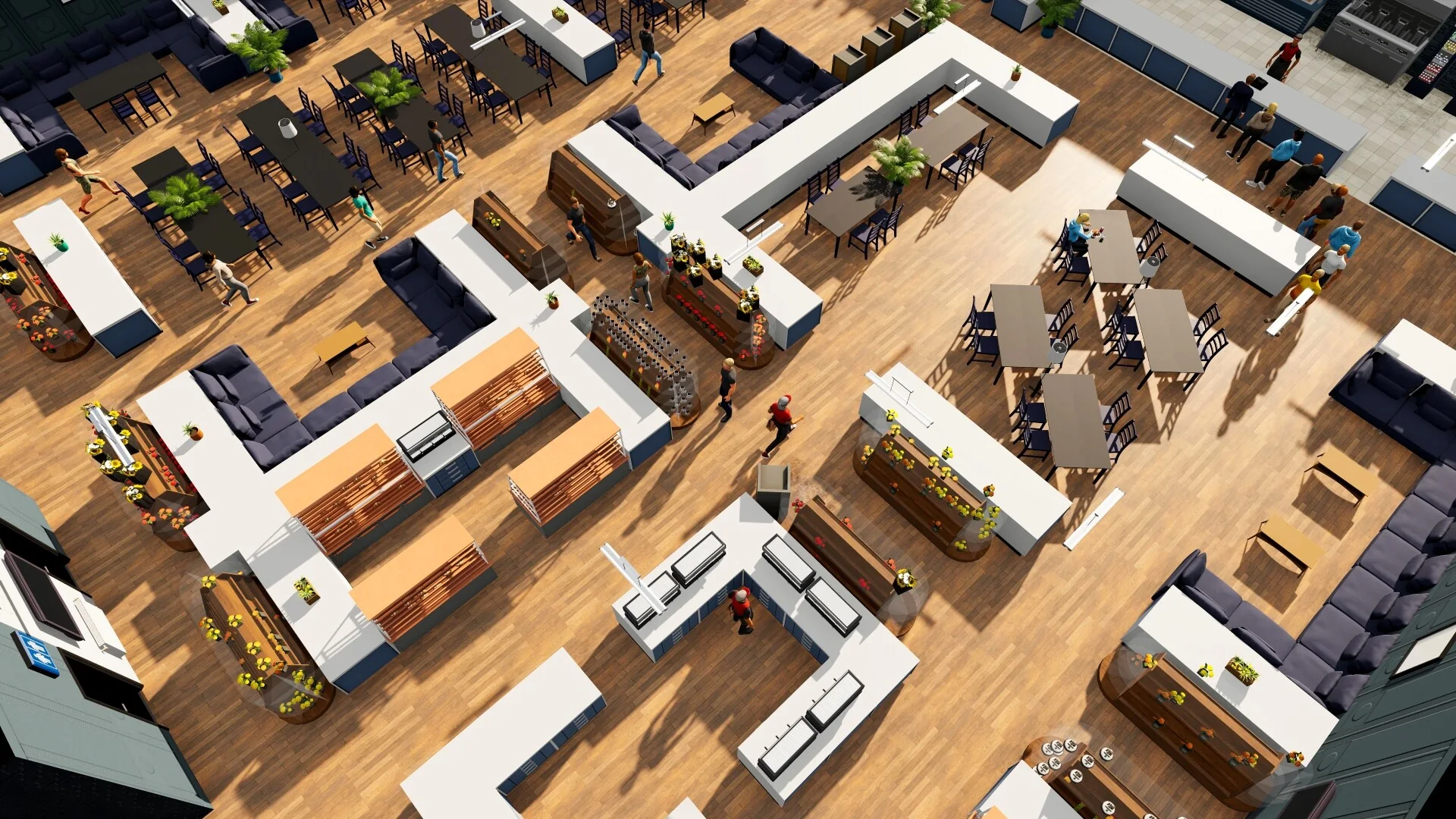
Plan camera placement around the merchandise the current business needs to protect, then recheck customer and staff movement. Do not copy a camera pattern from another building: walls, shelves, products, and business requirements differ. Use the security equipment guide for current sellers, reference prices, panels, and guards; use this page for the layout check.
Build a coverage plan
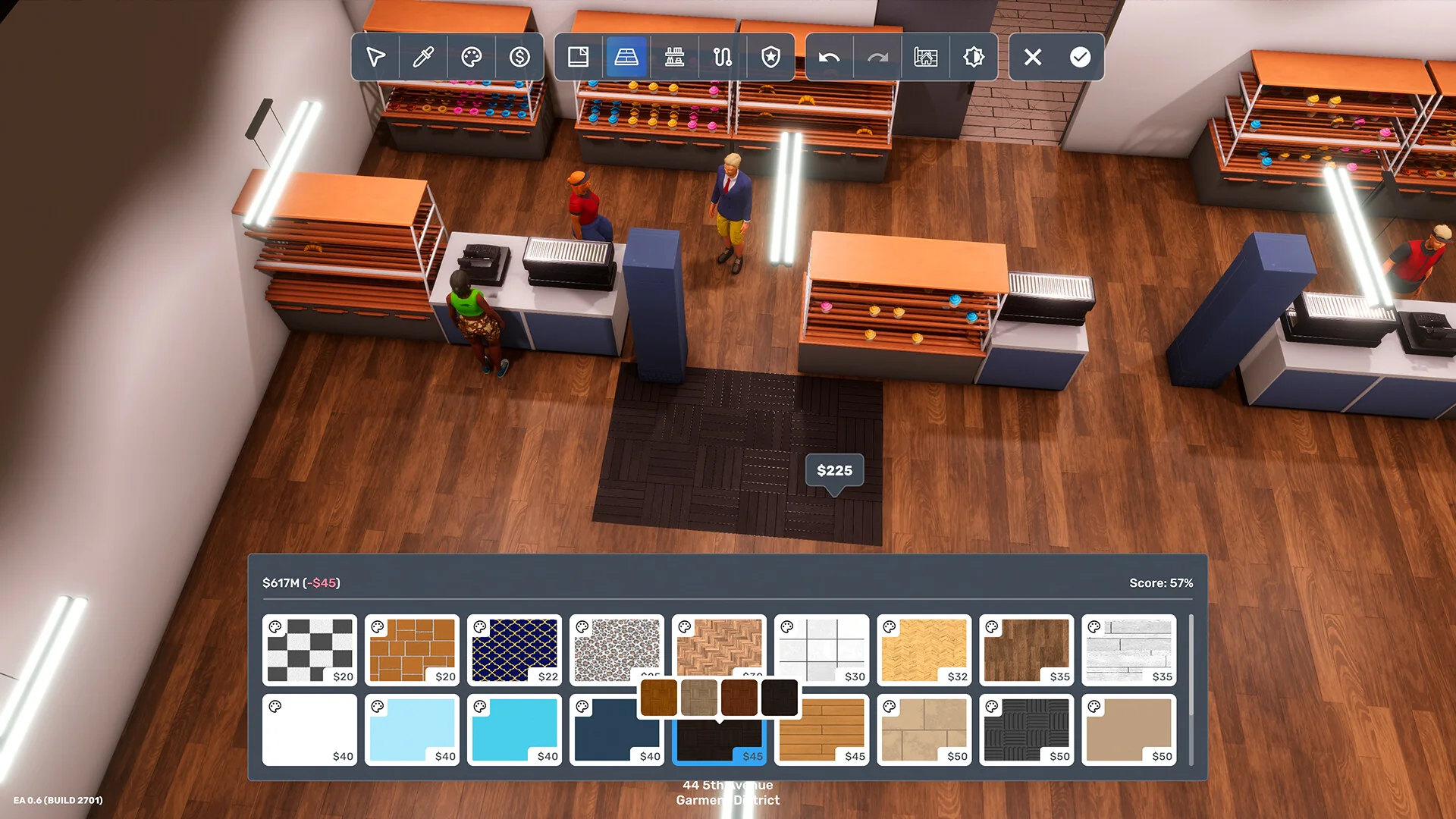
Use the coverage preview and business security panel in your save; this screenshot illustrates a retail fixture layout, not camera coverage.
- Open the business security panel and note whether it shows a coverage gap or another unmet requirement. List the shelves, display cases, or other merchandise areas the camera plan must cover.
- Use the camera-placement preview in your current build to inspect coverage while positioning each camera. Place wall or dome cameras where their displayed coverage reaches the intended stock; do not assume that a camera covers a whole room just because it is visible in the room.
- Check the entrance and customer route after placement. A panel may be part of the business requirement, but fixtures must not block the door, register queue, staff workstation, or restocking path.
- If the business requires guards, check the specifically named Security Guard Locker, then verify guard assignment, skill, and schedule coverage for every open hour. Do not substitute a regular employee or uniform locker when BizMan lists the Security Guard Locker; the guard locker is the station used to assign security guards. Keep any separate uniform or employee-locker demand as its own requirement.
- Open the business and check its live security status. If it remains low, use the stated gap and the store's theft expense to identify what to change; adjust one item or schedule at a time and recheck after normal operation.
| What you see | Check |
|---|---|
| One merchandise area remains outside the preview | Reposition or add coverage for that area, then recheck the business status |
| Security remains incomplete with visible coverage | Check for a panel or guard requirement; camera coverage alone may not meet every business need |
| A guard requirement is still unmet | Confirm the Security Guard Locker is present, reachable, and has an assigned guard scheduled for that hour |
| Another employee cannot use a locker or station | Check the employee or uniform requirement separately; do not treat it as the guard-locker check |
| Security is complete but theft expense still appears | Check the specific store and time period; do not infer the cause from a static layout alone |
The public sources do not establish a universal camera count or an exact room blueprint for every store. The current in-game coverage preview and business requirement are the right checks for your building and inventory. For location screening before a lease, see the building location guide.
Sources
- Big Ambitions Security Guide — equipment, reference prices, and guard requirements.
- Developer answer about the Security Guard Locker — identifies it as the guard item and points to its seller; check current F1 details for the save.
- Big Ambitions 1.0 security reference — secondary 1.0 synthesis with cited official notes; use the in-game preview and requirement for the final layout.
- Official Steam announcements — latest build notes.